This tutorial teaches the basics of building a web API with ASP.NET Core.
In this tutorial, you learn how to:
- Create a web API project.
- Add a model class and a database context.
- Scaffold a controller with CRUD methods.
- Configure routing, URL paths, and return values.
- Call the web API with Postman.
At the end, you have a web API that can manage "to-do" items stored in a database.
Overview
This tutorial creates the following API:
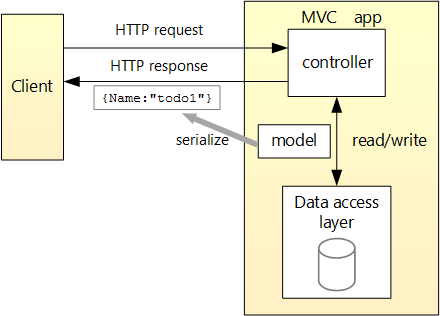
The following diagram shows the design of the app.
Prerequisites
Create a web project
- From the File menu, select New > Project.
- Select the ASP.NET Core Web API template and click Next.
- Name the project TodoApi and click Create.
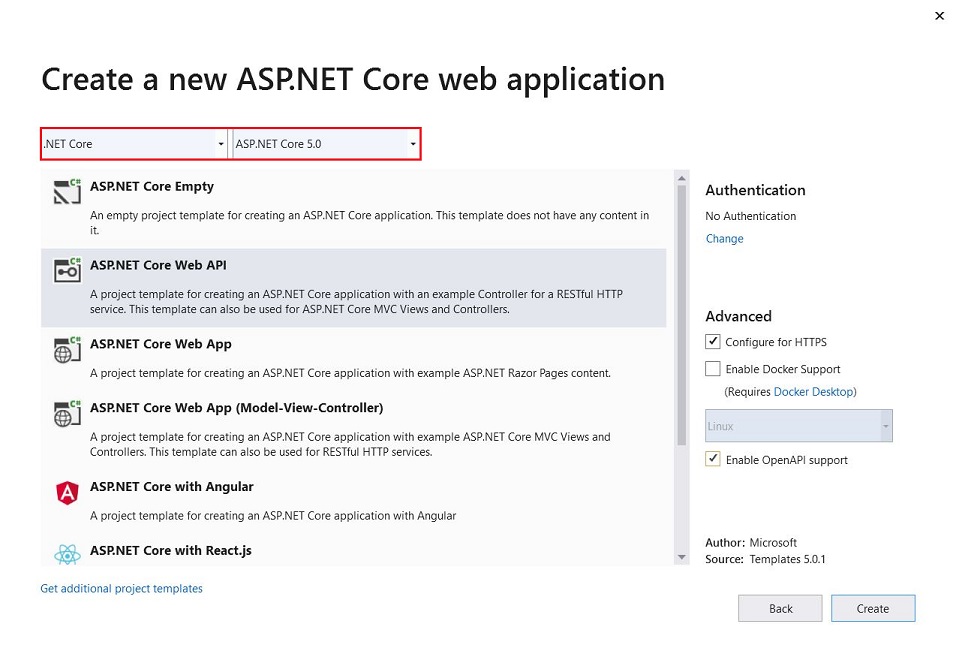
- In the Create a new ASP.NET Core Web Application dialog, confirm that .NET Core and ASP.NET Core 5.0 are selected. Select the API template and click Create.
Test the project
The project template creates a WeatherForecast API with support for Swagger.
Press Ctrl+F5 to run without the debugger.
Visual Studio displays the following dialog:

Select Yes if you trust the IIS Express SSL certificate.
The following dialog is displayed:
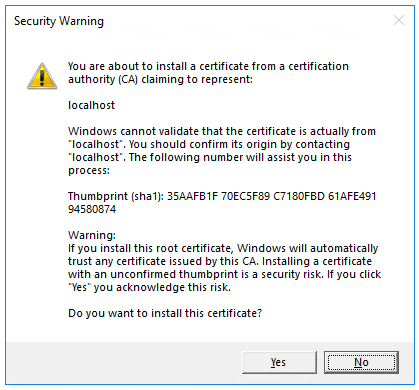
Select Yes if you agree to trust the development certificate.
For information on trusting the Firefox browser, see Firefox SEC_ERROR_INADEQUATE_KEY_USAGE certificate error.
Visual Studio launches:
- The IIS Express web server.
- The default browser and navigates to
https://localhost:<port>/swagger/index.html, where <port> is a randomly chosen port number.
The Swagger page /swagger/index.html is displayed. Select GET > Try it out > Execute. The page displays:
- The Curl command to test the WeatherForecast API.
- The URL to test the WeatherForecast API.
- The response code, body, and headers.
- A drop down list box with media types and the example value and schema.
If the Swagger page doesn't appear, see this GitHub issue.
Swagger is used to generate useful documentation and help pages for web APIs. This tutorial focuses on creating a web API. For more information on Swagger, see ASP.NET Core web API documentation with Swagger / OpenAPI.
Copy and paste the Request URL in the browser: https://localhost:<port>/WeatherForecast
JSON similar to the following is returned:
[
    {
        "date": "2019-07-16T19:04:05.7257911-06:00",
        "temperatureC": 52,
        "temperatureF": 125,
        "summary": "Mild"
    },
    {
        "date": "2019-07-17T19:04:05.7258461-06:00",
        "temperatureC": 36,
        "temperatureF": 96,
        "summary": "Warm"
    },
    {
        "date": "2019-07-18T19:04:05.7258467-06:00",
        "temperatureC": 39,
        "temperatureF": 102,
        "summary": "Cool"
    },
    {
        "date": "2019-07-19T19:04:05.7258471-06:00",
        "temperatureC": 10,
        "temperatureF": 49,
        "summary": "Bracing"
    },
    {
        "date": "2019-07-20T19:04:05.7258474-06:00",
        "temperatureC": -1,
        "temperatureF": 31,
        "summary": "Chilly"
    }
]
Update the launchUrl
In Properties\launchSettings.json, update launchUrl from "swagger" to "api/TodoItems":
"launchUrl": "api/TodoItems",
Because Swagger has been removed, the preceding markup changes the URL that is launched to the GET method of the controller added in the following sections.
Add a model class
A model is a set of classes that represent the data that the app manages. The model for this app is a single TodoItem class.
In Solution Explorer, right-click the project. Select Add > New Folder. Name the folder Models.
Right-click the Models folder and select Add > Class. Name the class TodoItem and select Add.
Replace the template code with the following:
namespace TodoApi.Models
{
    public class TodoItem
    {
        public long Id { get; set; }
        public string Name { get; set; }
        public bool IsComplete { get; set; }
    }
}
The Id property functions as the unique key in a relational database.
Model classes can go anywhere in the project, but the Models folder is used by convention.
Add a database context
The database context is the main class that coordinates Entity Framework functionality for a data model. This class is created by deriving from the Microsoft.EntityFrameworkCore.DbContext class.
Add NuGet packages
- From the Tools menu, select NuGet Package Manager > Manage NuGet Packages for Solution.
- Select the Browse tab, and then enter
Microsoft.EntityFrameworkCore.InMemory in the search box. - Select
Microsoft.EntityFrameworkCore.InMemory in the left pane. - Select the Project checkbox in the right pane and then select Install.

Add the TodoContext database context
- Right-click the Models folder and select Add > Class. Name the class TodoContext and click Add.
Enter the following code:
using Microsoft.EntityFrameworkCore;

namespace TodoApi.Models
{
    public class TodoContext : DbContext
    {
        public TodoContext(DbContextOptions<TodoContext> options)
            : base(options)
        {
        }

        public DbSet<TodoItem> TodoItems { get; set; }
    }
}
Register the database context
In ASP.NET Core, services such as the DB context must be registered with the dependency injection (DI) container. The container provides the service to controllers.
Update Startup.cs with the following code:
using Microsoft.AspNetCore.Builder;
using Microsoft.AspNetCore.Hosting;
using Microsoft.Extensions.Configuration;
using Microsoft.Extensions.DependencyInjection;
using Microsoft.Extensions.Hosting;
using Microsoft.EntityFrameworkCore;
using TodoApi.Models;
namespace TodoApi
{
public class Startup
{
public Startup(IConfiguration configuration)
{
Configuration = configuration;
}
public IConfiguration Configuration { get; }
public void ConfigureServices(IServiceCollection services)
{
services.AddDbContext<TodoContext>(opt =>
opt.UseInMemoryDatabase("TodoList"));
services.AddControllers();
}
public void Configure(IApplicationBuilder app, IWebHostEnvironment env)
{
if (env.IsDevelopment())
{
app.UseDeveloperExceptionPage();
}
app.UseHttpsRedirection();
app.UseRouting();
app.UseAuthorization();
app.UseEndpoints(endpoints =>
{
endpoints.MapControllers();
});
}
}
}
The preceding code:
- Removes the Swagger calls.
- Removes unused
using declarations. - Adds the database context to the DI container.
- Specifies that the database context will use an in-memory database.
Scaffold a controller
Right-click the Controllers folder.
Select Add > New Scaffolded Item.
Select API Controller with actions, using Entity Framework, and then select Add.
In the Add API Controller with actions, using Entity Framework dialog:
- Select TodoItem (TodoApi.Models) in the Model class.
- Select TodoContext (TodoApi.Models) in the Data context class.
- Select Add.
The generated code:
- Marks the class with the
[ApiController] attribute. This attribute indicates that the controller responds to web API requests. For information about specific behaviors that the attribute enables, see Create web APIs with ASP.NET Core. - Uses DI to inject the database context (
TodoContext) into the controller. The database context is used in each of the CRUD methods in the controller.
The ASP.NET Core templates for:
- Controllers with views include
[action] in the route template. - API controllers don't include
[action] in the route template.
When the [action] token isn't in the route template, the action name is excluded from the route. That is, the action's associated method name isn't used in the matching route.
Update the PostTodoItem create method
Update the return statement in the PostTodoItem to use the nameof operator:
[HttpPost]
public async Task<ActionResult<TodoItem>> PostTodoItem(TodoItem todoItem)
{
_context.TodoItems.Add(todoItem);
await _context.SaveChangesAsync();
return CreatedAtAction(nameof(GetTodoItem), new { id = todoItem.Id }, todoItem);
}
The preceding code is an HTTP POST method, as indicated by the [HttpPost] attribute. The method gets the value of the to-do item from the body of the HTTP request.
For more information, see Attribute routing with Http[Verb] attributes.
The CreatedAtAction method:
- Returns an HTTP 201 status code if successful. HTTP 201 is the standard response for an HTTP POST method that creates a new resource on the server.
- Adds a Location header to the response. The
Location header specifies the URI of the newly created to-do item. For more information, see 10.2.2 201 Created. - References the
GetTodoItem action to create the Location header's URI. The C# nameof keyword is used to avoid hard-coding the action name in the CreatedAtAction call.
Install Postman
This tutorial uses Postman to test the web API.
- Install Postman
- Start the web app.
- Start Postman.
- Disable SSL certificate verification
- From File > Settings (General tab), disable SSL certificate verification.
Warning
Re-enable SSL certificate verification after testing the controller.
Test PostTodoItem with Postman
Create a new request.
Set the HTTP method to POST.
Set the URI to https://localhost:<port>/api/TodoItems. For example, https://localhost:5001/api/TodoItems.
Select the Body tab.
Select the raw radio button.
Set the type to JSON (application/json).
In the request body enter JSON for a to-do item:
{
  "name":"walk dog",
  "isComplete":true
}
Select Send.
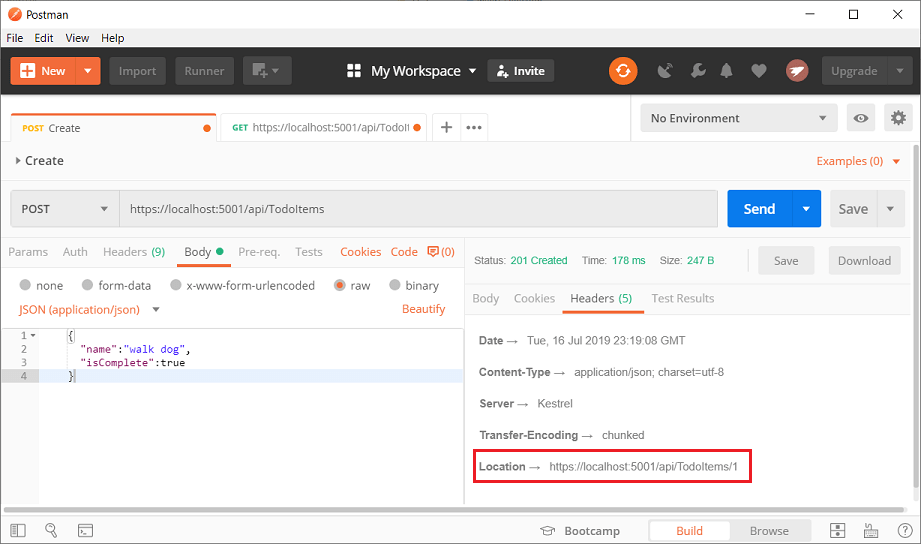
The location header URI can be tested in the browser. Copy and paste the location header URI into the browser.
To test in Postman:
Select the Headers tab in the Response pane.
Copy the Location header value:
Set the HTTP method to GET.
Set the URI to https://localhost:<port>/api/TodoItems/1. For example, https://localhost:5001/api/TodoItems/1.
Select Send.
Examine the GET methods
Two GET endpoints are implemented:
GET /api/TodoItemsGET /api/TodoItems/{id}
Test the app by calling the two endpoints from a browser or Postman. For example:
https://localhost:5001/api/TodoItemshttps://localhost:5001/api/TodoItems/1
A response similar to the following is produced by the call to GetTodoItems:
[
  {
    "id": 1,
    "name": "Item1",
    "isComplete": false
  }
]
Test Get with Postman
- Create a new request.
- Set the HTTP method to GET.
- Set the request URI to
https://localhost:<port>/api/TodoItems. For example, https://localhost:5001/api/TodoItems. - Set Two pane view in Postman.
- Select Send.
This app uses an in-memory database. If the app is stopped and started, the preceding GET request will not return any data. If no data is returned, POST data to the app.
Routing and URL paths
The [HttpGet] attribute denotes a method that responds to an HTTP GET request. The URL path for each method is constructed as follows:
Start with the template string in the controller's Route attribute:
[Route("api/[controller]")]
[ApiController]
public class TodoItemsController : ControllerBase
{
    private readonly TodoContext _context;

    public TodoItemsController(TodoContext context)
    {
        _context = context;
    }
Replace [controller] with the name of the controller, which by convention is the controller class name minus the "Controller" suffix. For this sample, the controller class name is TodoItemsController, so the controller name is "TodoItems". ASP.NET Core routing is case insensitive.
If the [HttpGet] attribute has a route template (for example, [HttpGet("products")]), append that to the path. This sample doesn't use a template. For more information, see Attribute routing with Http[Verb] attributes.
In the following GetTodoItem method, "{id}" is a placeholder variable for the unique identifier of the to-do item. When GetTodoItem is invoked, the value of "{id}" in the URL is provided to the method in its id parameter.
[HttpGet("{id}")]
public async Task<ActionResult<TodoItem>> GetTodoItem(long id)
{
var todoItem = await _context.TodoItems.FindAsync(id);
if (todoItem == null)
{
return NotFound();
}
return todoItem;
}
Return values
The return type of the GetTodoItems and GetTodoItem methods is ActionResult<T> type. ASP.NET Core automatically serializes the object to JSON and writes the JSON into the body of the response message. The response code for this return type is 200 OK, assuming there are no unhandled exceptions. Unhandled exceptions are translated into 5xx errors.
ActionResult return types can represent a wide range of HTTP status codes. For example, GetTodoItem can return two different status values:
- If no item matches the requested ID, the method returns a 404 status NotFound error code.
- Otherwise, the method returns 200 with a JSON response body. Returning
item results in an HTTP 200 response.
The PutTodoItem method
Examine the PutTodoItem method:
[HttpPut("{id}")]
public async Task<IActionResult> PutTodoItem(long id, TodoItem todoItem)
{
if (id != todoItem.Id)
{
return BadRequest();
}
_context.Entry(todoItem).State = EntityState.Modified;
try
{
await _context.SaveChangesAsync();
}
catch (DbUpdateConcurrencyException)
{
if (!TodoItemExists(id))
{
return NotFound();
}
else
{
throw;
}
}
return NoContent();
}
PutTodoItem is similar to PostTodoItem, except it uses HTTP PUT. The response is 204 (No Content). According to the HTTP specification, a PUT request requires the client to send the entire updated entity, not just the changes. To support partial updates, use HTTP PATCH.
If you get an error calling PutTodoItem, call GET to ensure there's an item in the database.
Test the PutTodoItem method
This sample uses an in-memory database that must be initialized each time the app is started. There must be an item in the database before you make a PUT call. Call GET to ensure there's an item in the database before making a PUT call.
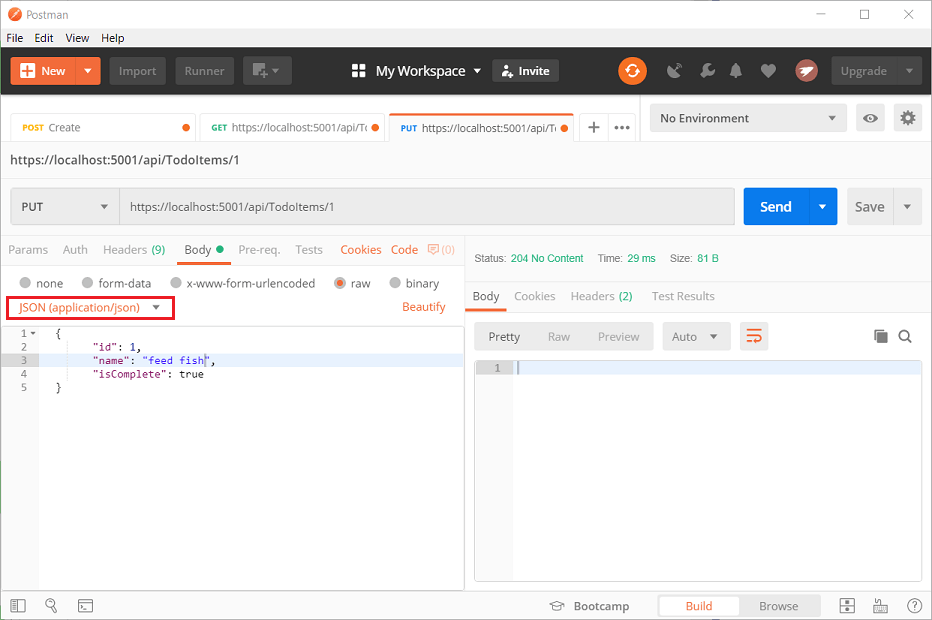
Update the to-do item that has Id = 1 and set its name to "feed fish":
  {
    "Id":1,
    "name":"feed fish",
    "isComplete":true
  }
The following image shows the Postman update:
The DeleteTodoItem method
Examine the DeleteTodoItem method:
[HttpDelete("{id}")]
public async Task<IActionResult> DeleteTodoItem(long id)
{
var todoItem = await _context.TodoItems.FindAsync(id);
if (todoItem == null)
{
return NotFound();
}
_context.TodoItems.Remove(todoItem);
await _context.SaveChangesAsync();
return NoContent();
}
Test the DeleteTodoItem method
Use Postman to delete a to-do item:
- Set the method to
DELETE. - Set the URI of the object to delete (for example
https://localhost:5001/api/TodoItems/1). - Select Send.
Prevent over-posting
Currently the sample app exposes the entire TodoItem object. Production apps typically limit the data that's input and returned using a subset of the model. There are multiple reasons behind this and security is a major one. The subset of a model is usually referred to as a Data Transfer Object (DTO), input model, or view model. DTO is used in this article.
A DTO may be used to:
- Prevent over-posting.
- Hide properties that clients are not supposed to view.
- Omit some properties in order to reduce payload size.
- Flatten object graphs that contain nested objects. Flattened object graphs can be more convenient for clients.
To demonstrate the DTO approach, update the TodoItem class to include a secret field:
namespace TodoApi.Models
{
    public class TodoItem
    {
        public long Id { get; set; }
        public string Name { get; set; }
        public bool IsComplete { get; set; }
        public string Secret { get; set; }
    }
}
The secret field needs to be hidden from this app, but an administrative app could choose to expose it.
Verify you can post and get the secret field.
Create a DTO model:
public class TodoItemDTO
{
    public long Id { get; set; }
    public string Name { get; set; }
    public bool IsComplete { get; set; }
}
Update the TodoItemsController to use TodoItemDTO:
[HttpGet]
public async Task<ActionResult<IEnumerable<TodoItemDTO>>> GetTodoItems()
{
return await _context.TodoItems
.Select(x => ItemToDTO(x))
.ToListAsync();
}
[HttpGet("{id}")]
public async Task<ActionResult<TodoItemDTO>> GetTodoItem(long id)
{
var todoItem = await _context.TodoItems.FindAsync(id);
if (todoItem == null)
{
return NotFound();
}
return ItemToDTO(todoItem);
}
[HttpPut("{id}")]
public async Task<IActionResult> UpdateTodoItem(long id, TodoItemDTO todoItemDTO)
{
if (id != todoItemDTO.Id)
{
return BadRequest();
}
var todoItem = await _context.TodoItems.FindAsync(id);
if (todoItem == null)
{
return NotFound();
}
todoItem.Name = todoItemDTO.Name;
todoItem.IsComplete = todoItemDTO.IsComplete;
try
{
await _context.SaveChangesAsync();
}
catch (DbUpdateConcurrencyException) when (!TodoItemExists(id))
{
return NotFound();
}
return NoContent();
}
[HttpPost]
public async Task<ActionResult<TodoItemDTO>> CreateTodoItem(TodoItemDTO todoItemDTO)
{
var todoItem = new TodoItem
{
IsComplete = todoItemDTO.IsComplete,
Name = todoItemDTO.Name
};
_context.TodoItems.Add(todoItem);
await _context.SaveChangesAsync();
return CreatedAtAction(
nameof(GetTodoItem),
new { id = todoItem.Id },
ItemToDTO(todoItem));
}
[HttpDelete("{id}")]
public async Task<IActionResult> DeleteTodoItem(long id)
{
var todoItem = await _context.TodoItems.FindAsync(id);
if (todoItem == null)
{
return NotFound();
}
_context.TodoItems.Remove(todoItem);
await _context.SaveChangesAsync();
return NoContent();
}
private bool TodoItemExists(long id) =>
_context.TodoItems.Any(e => e.Id == id);
private static TodoItemDTO ItemToDTO(TodoItem todoItem) =>
new TodoItemDTO
{
Id = todoItem.Id,
Name = todoItem.Name,
IsComplete = todoItem.IsComplete
};
Verify you can't post or get the secret field.
Call the web API with JavaScript
See Tutorial: Call an ASP.NET Core web API with JavaScript.
ASP.NET Core Identity adds user interface (UI) login functionality to ASP.NET Core web apps. To secure web APIs and SPAs, use one of the following:
IdentityServer4 is an OpenID Connect and OAuth 2.0 framework for ASP.NET Core. IdentityServer4 enables the following security features:

Comments
Post a Comment